Introduction
(Currently redesigning the app)
Live website
Nuvia was initially designed as an all-in-one health platform where users could track medications, manage doctor appointments, and monitor their overall health along with family members. After going through several iterations, this broad approach led to a fragmented experience—each feature felt disconnected, with different sections competing for attention rather than working together cohesively. The lack of clear hierarchy made it difficult for users to navigate the app intuitively and understand what actions to prioritize.
To address these issues, I refined Nuvia’s focus to center solely on lab results. By narrowing the scope, the experience became more cohesive and purposeful, allowing for clearer prioritization and a stronger visual and functional hierarchy. This shift made it easier for users to quickly access, understand, and track their health data over time, while still supporting key actions like scheduling related appointments.

Landing Screen & Settings
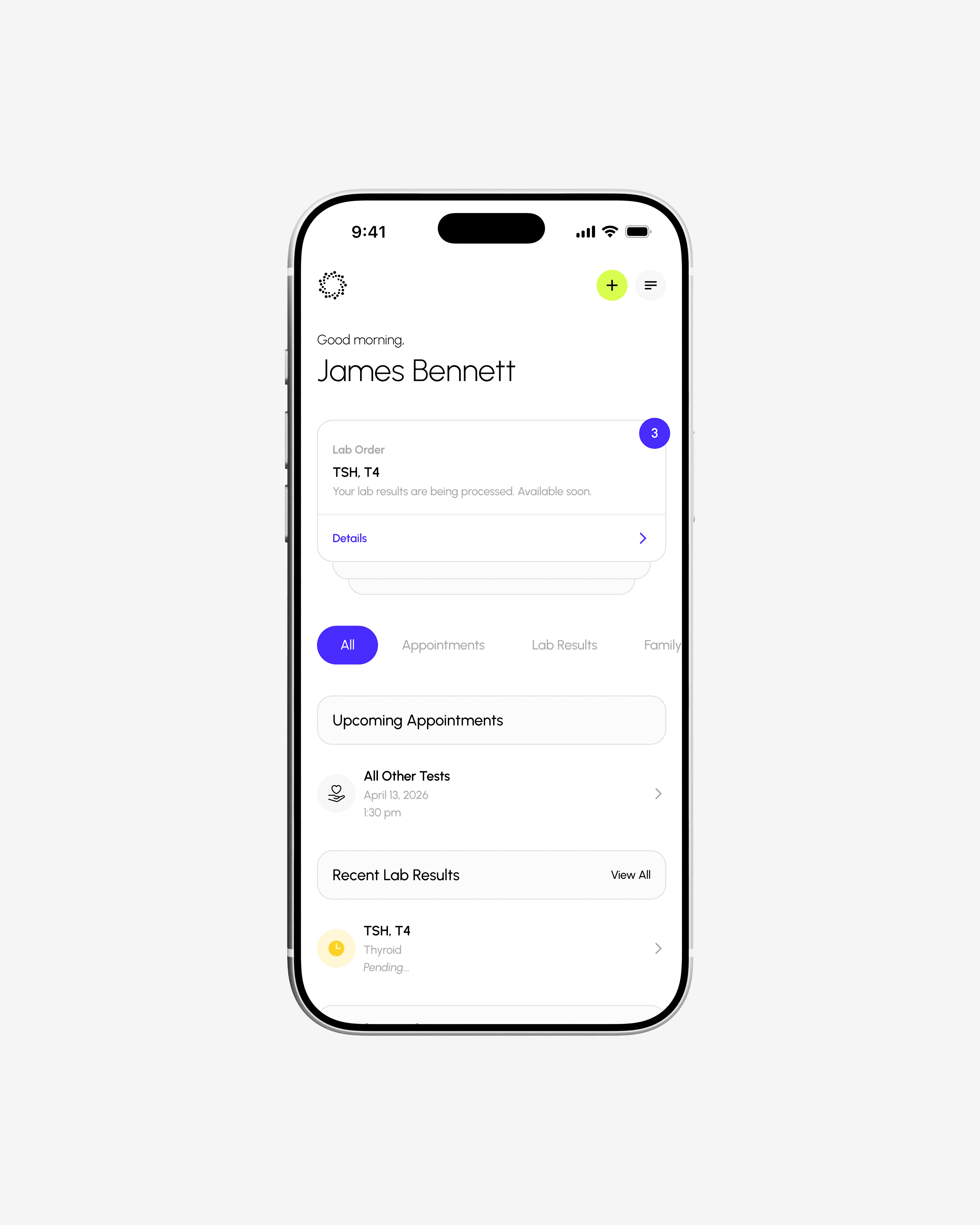
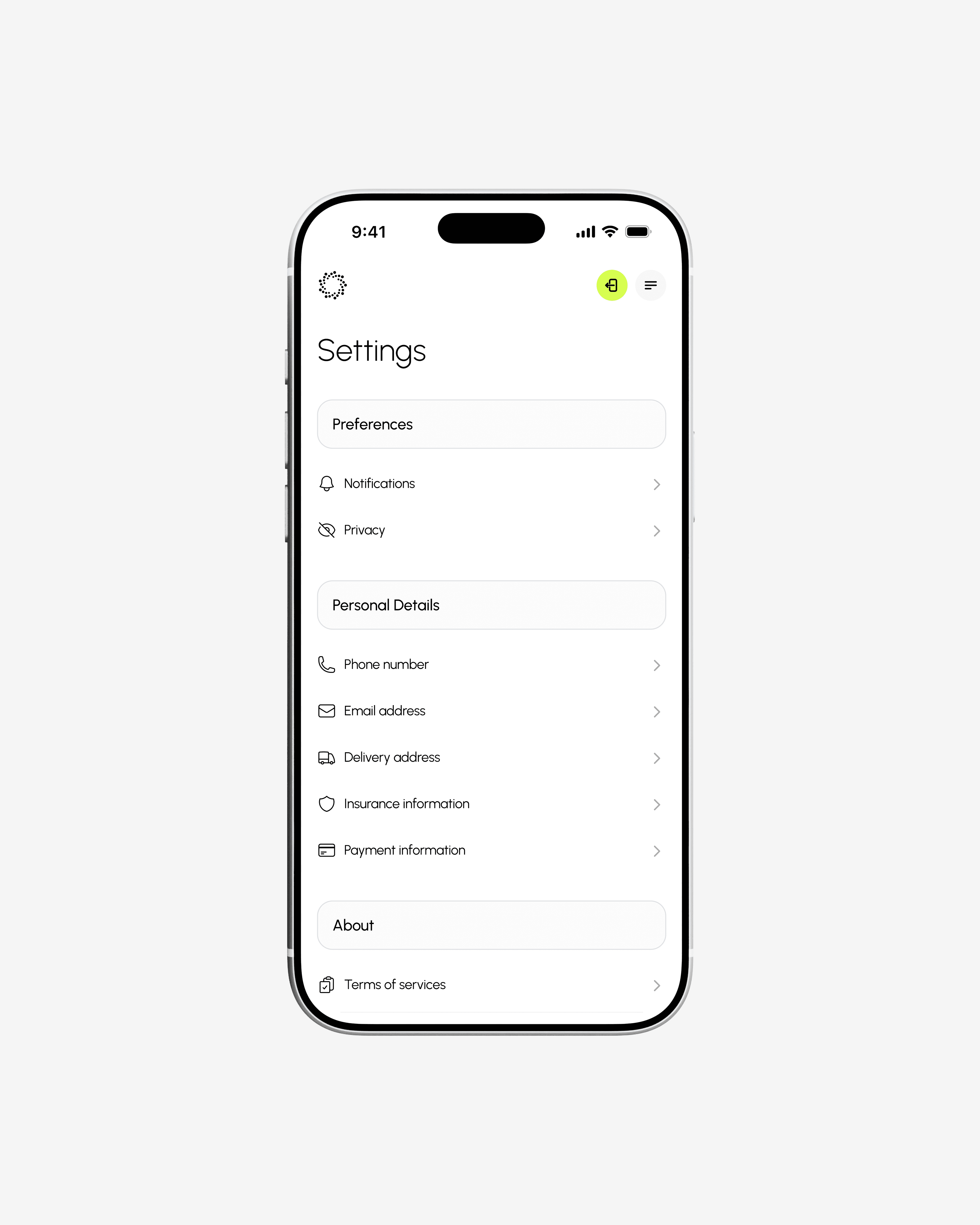
The landing screen serves as the central hub of Nuvia. Beneath the greeting message, a stack of notifications highlights upcoming appointments, new lab results, and anything else the user needs to be aware of.Users are able to schedule/manage upcoming lab visits or view lab results without navigating through multiple screens. In addition to personal health tracking, Nuvia also supports family care management, helping caregivers or parents stay organized when managing health information for others.
Lab Results
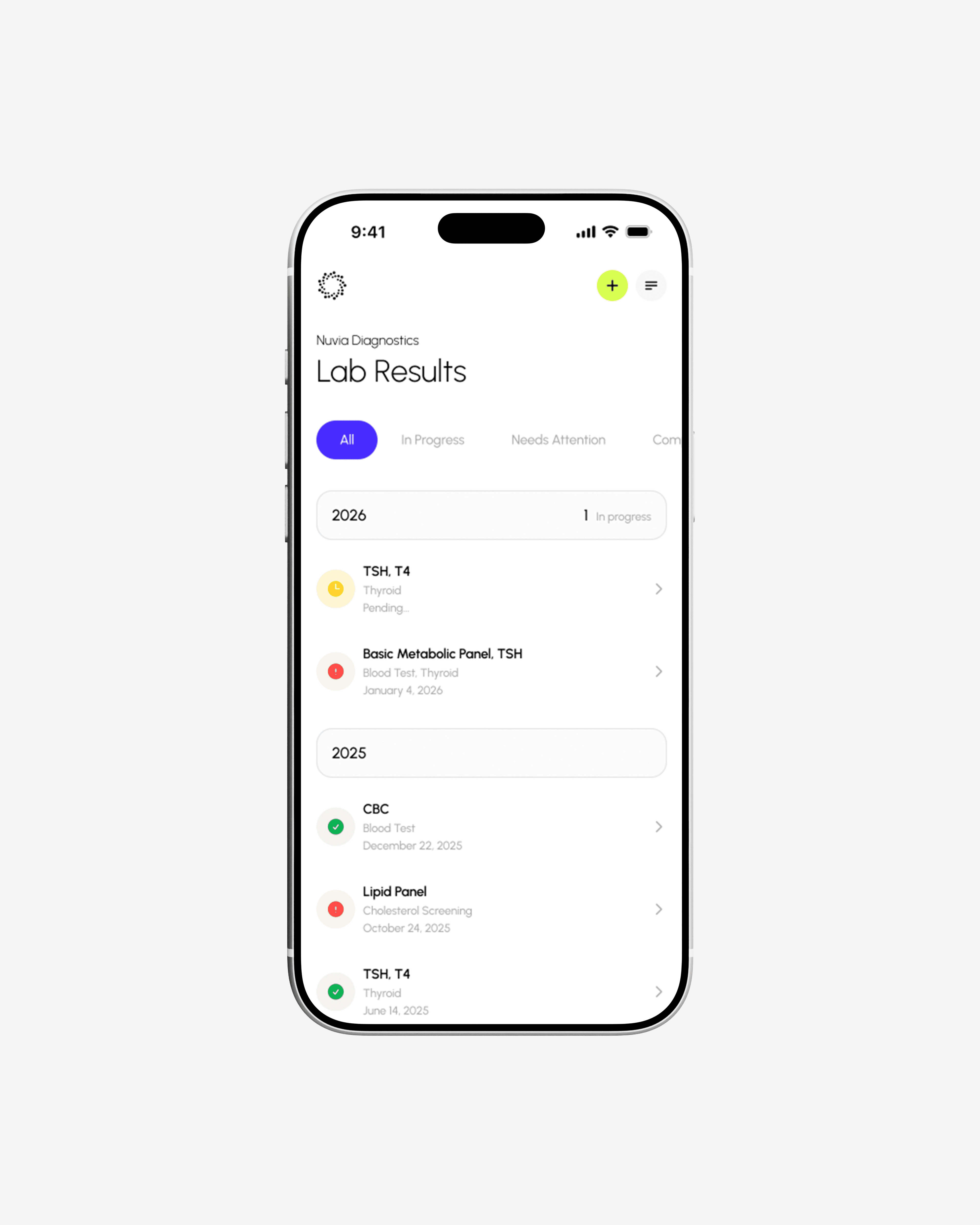
This screen layout became the foundation for the rest of the app. Lab results are organized by year, with each entry showing the test name, type, and date. I included the test type (like “blood test” or “thyroid”) to make things clearer for users who may not recognize the lab name, helping them find what they need faster without extra searching.Each result also includes a color-coded icon: a red alert for results that need attention, a green checkmark for normal results, and a yellow clock for pending ones. This gives users a quick understanding of their status before opening the full details.
Lab details
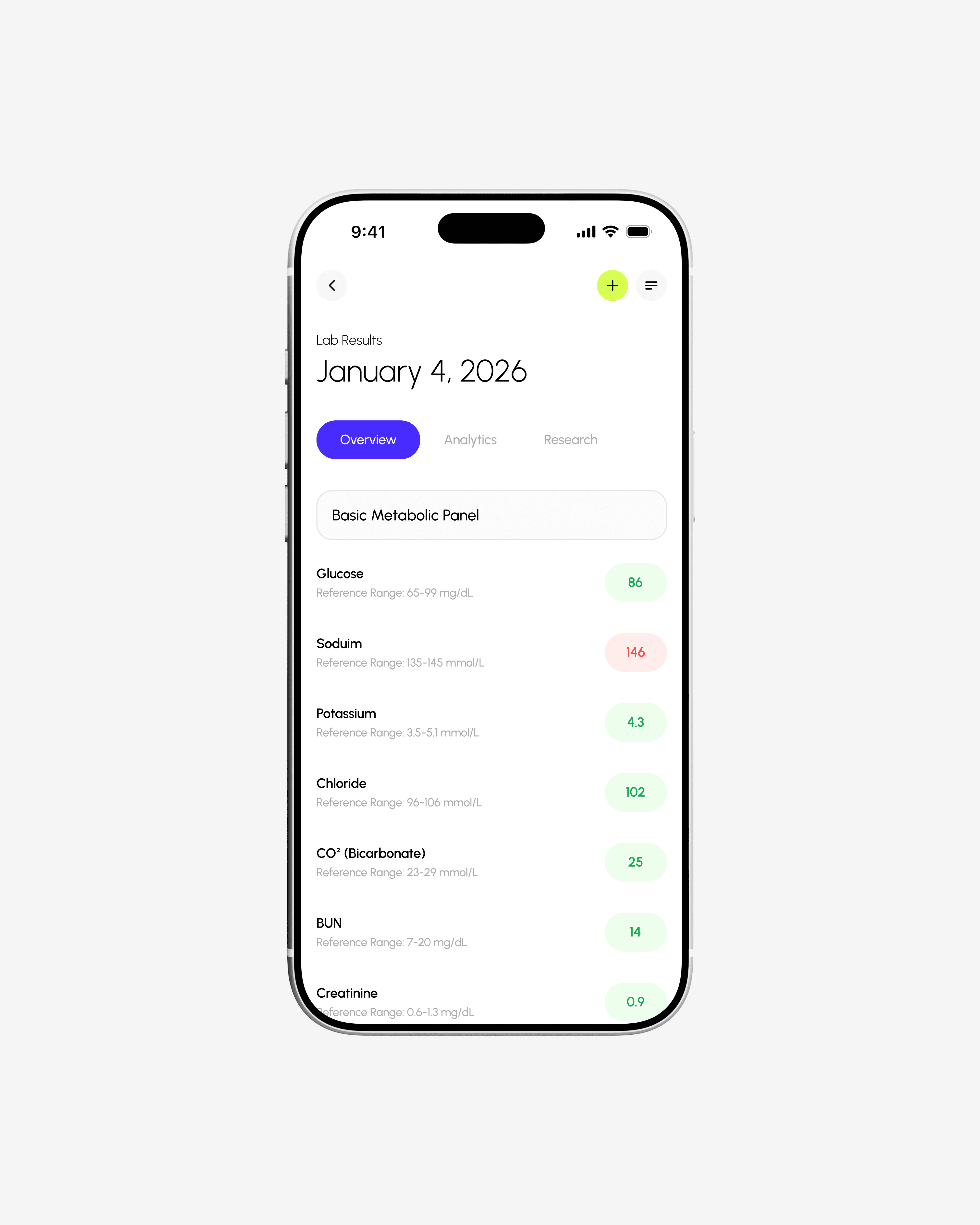
After selecting a lab, users can view specific details like sodium and glucose levels. Each result is shown with its name and reference range, helping users understand how their numbers compare. The values are also color-coded—red for out-of-range and green for normal—making it easier to quickly see what needs attention and to clearly understand results.
appointment scheduling
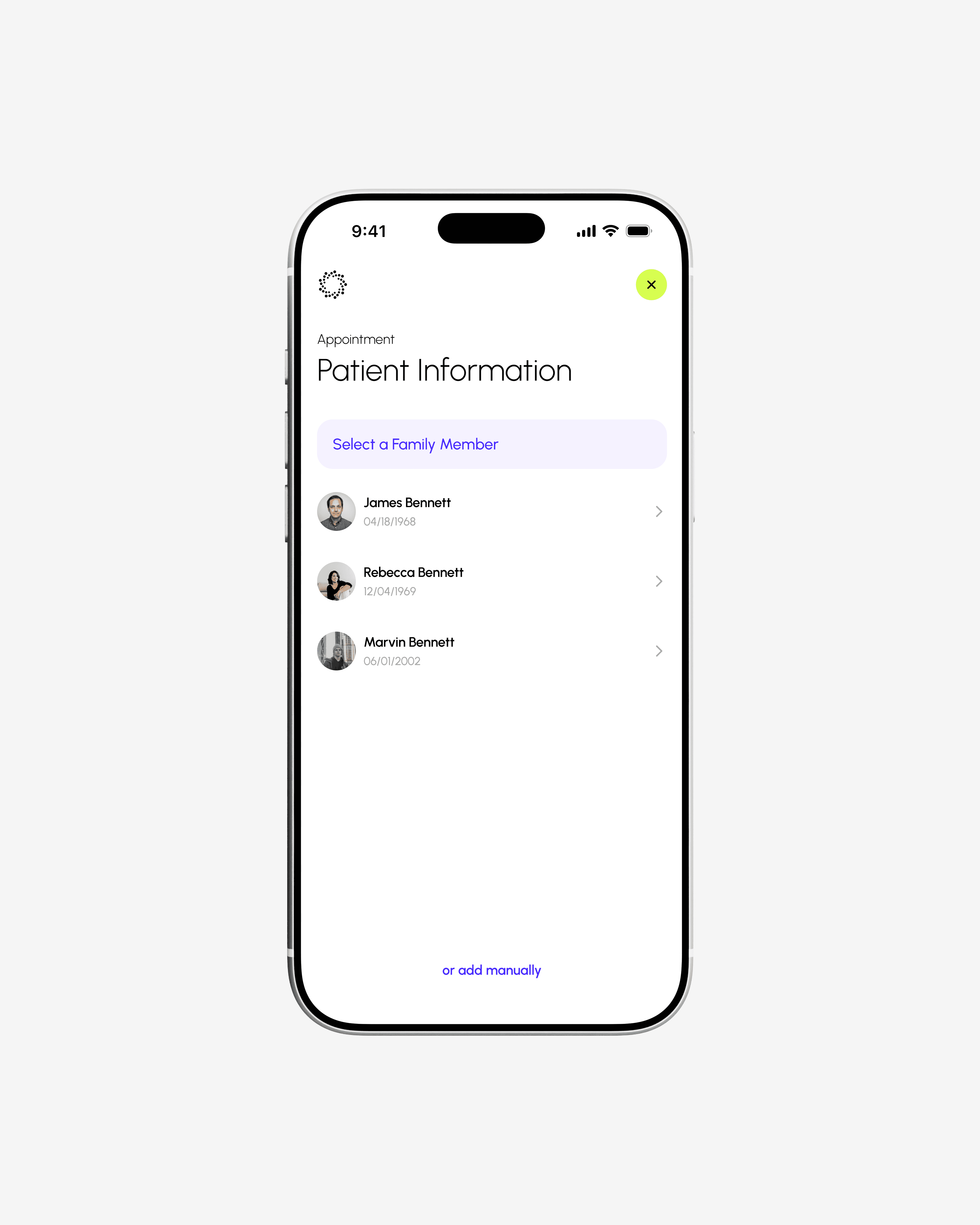
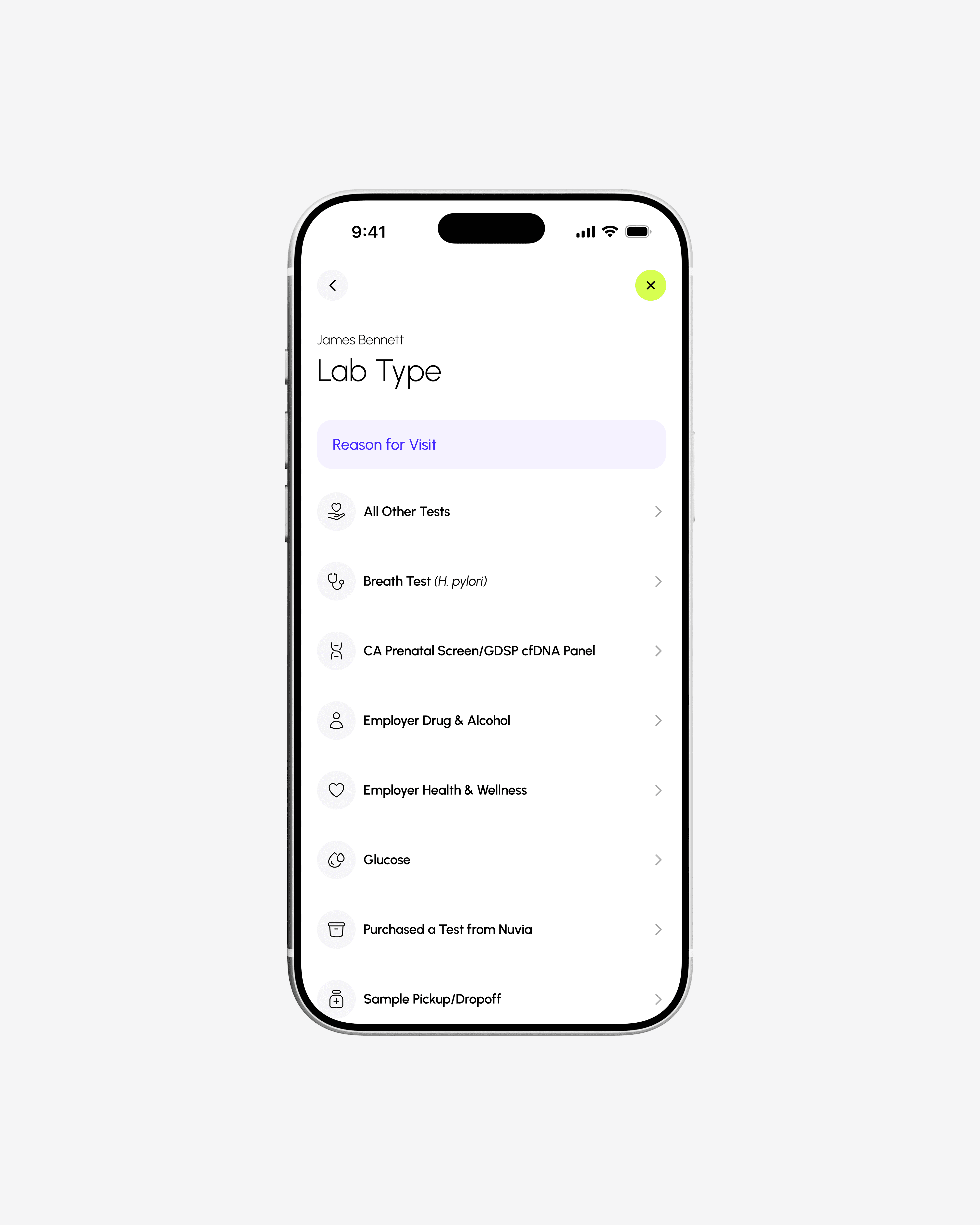
The appointment scheduling flow was designed to be simple, flexible, and easy to navigate. Users can begin by selecting from previously saved profiles or entering their information manually, allowing for quick access while still supporting new or one-time users. After, users are asked to choose the reason for their visit from a selection of lab tests.
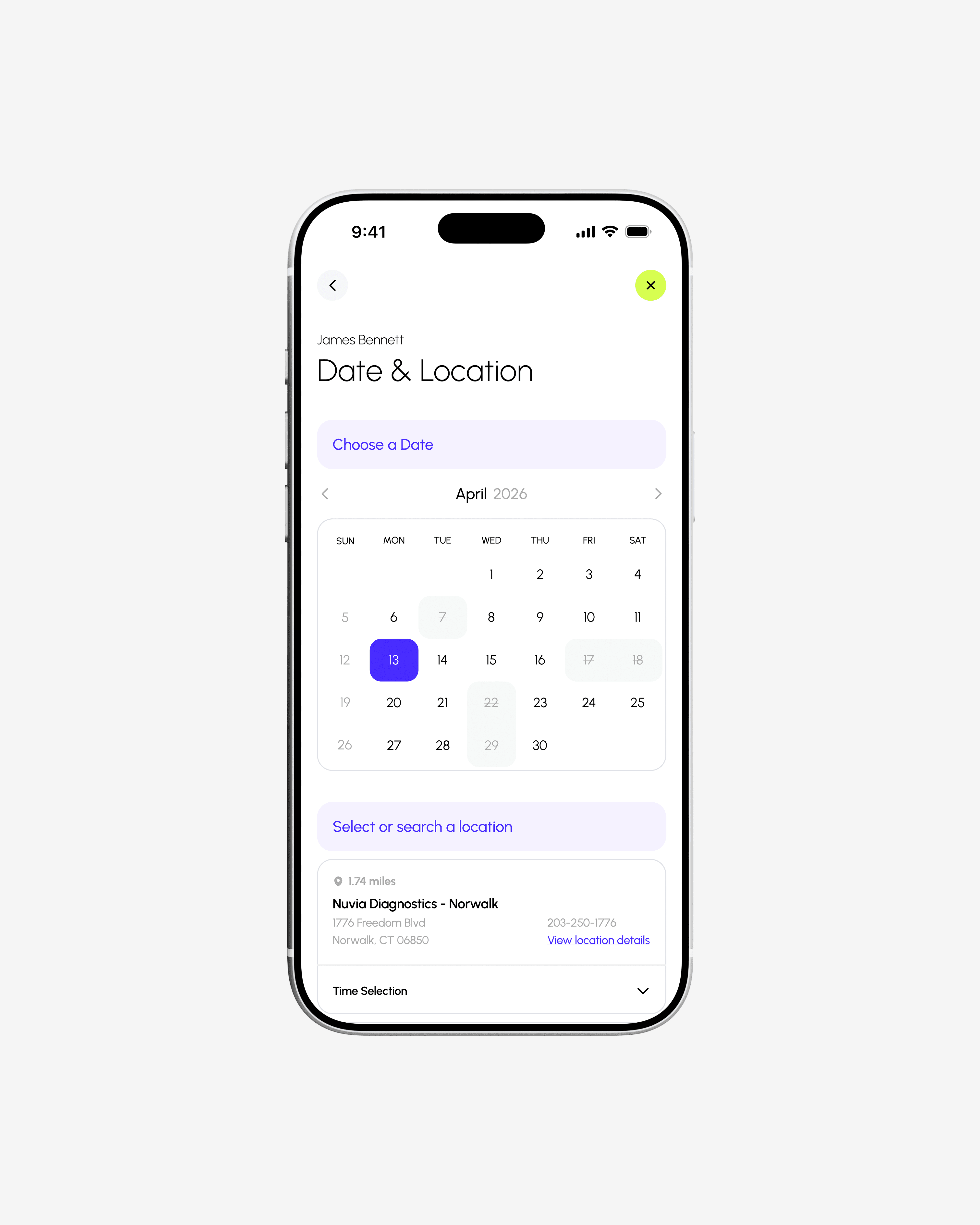
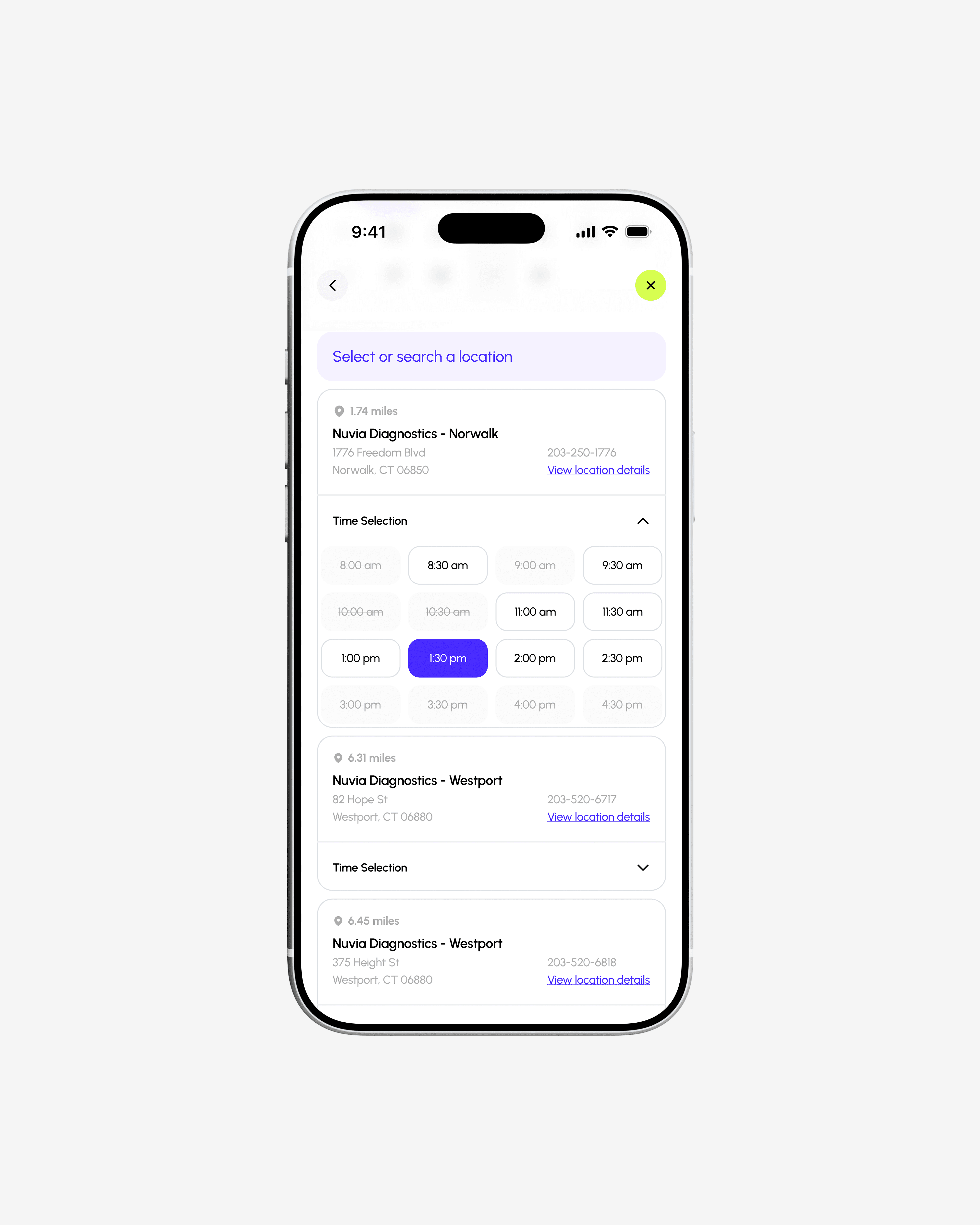
From there, users choose their preferred date, with available options clearly presented and unavailable dates and times visually muted and struck through to reduce confusion. Once a date is selected, nearby lab locations are displayed along with corresponding time slots, helping users quickly find a convenient option based on both location and availability.
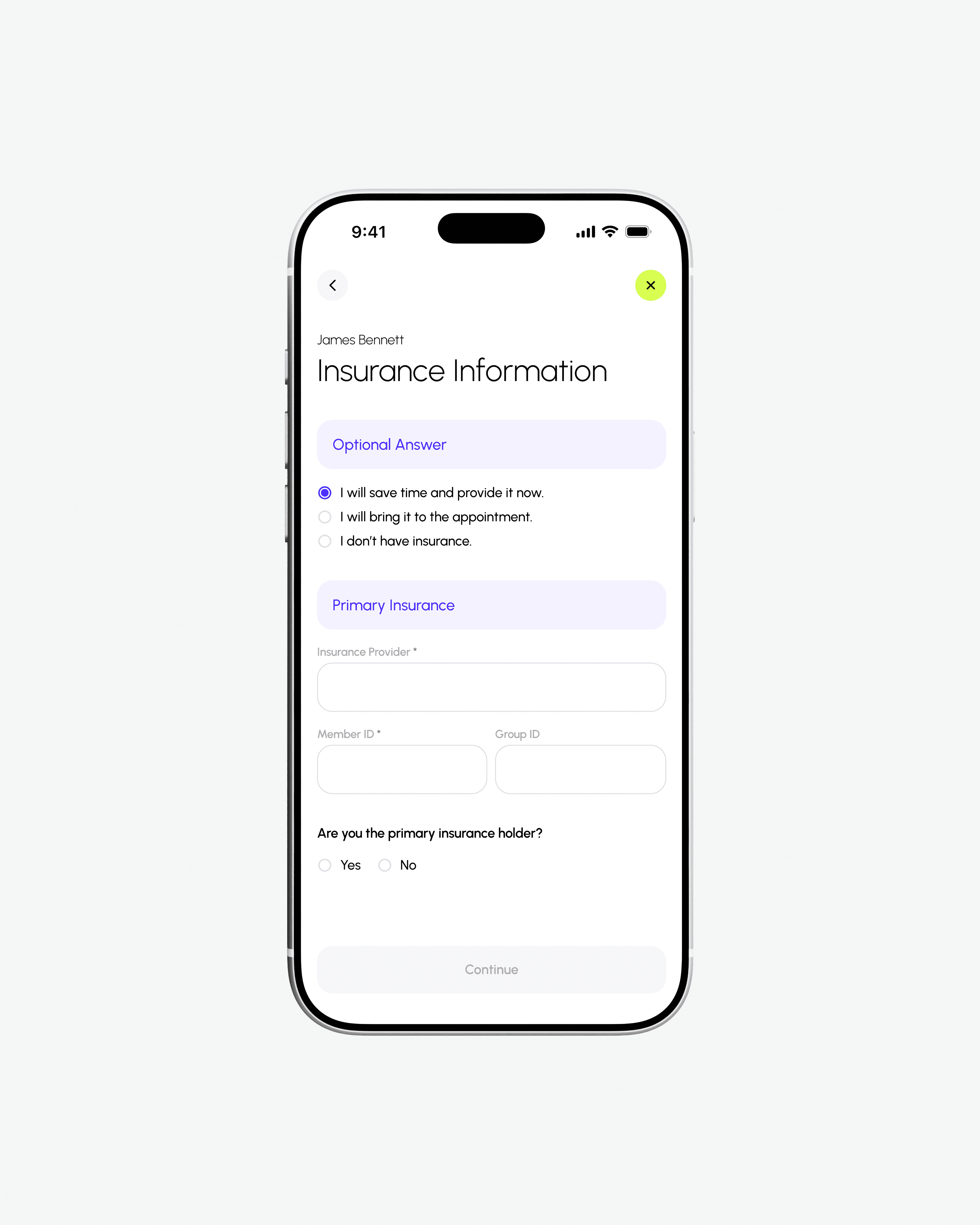
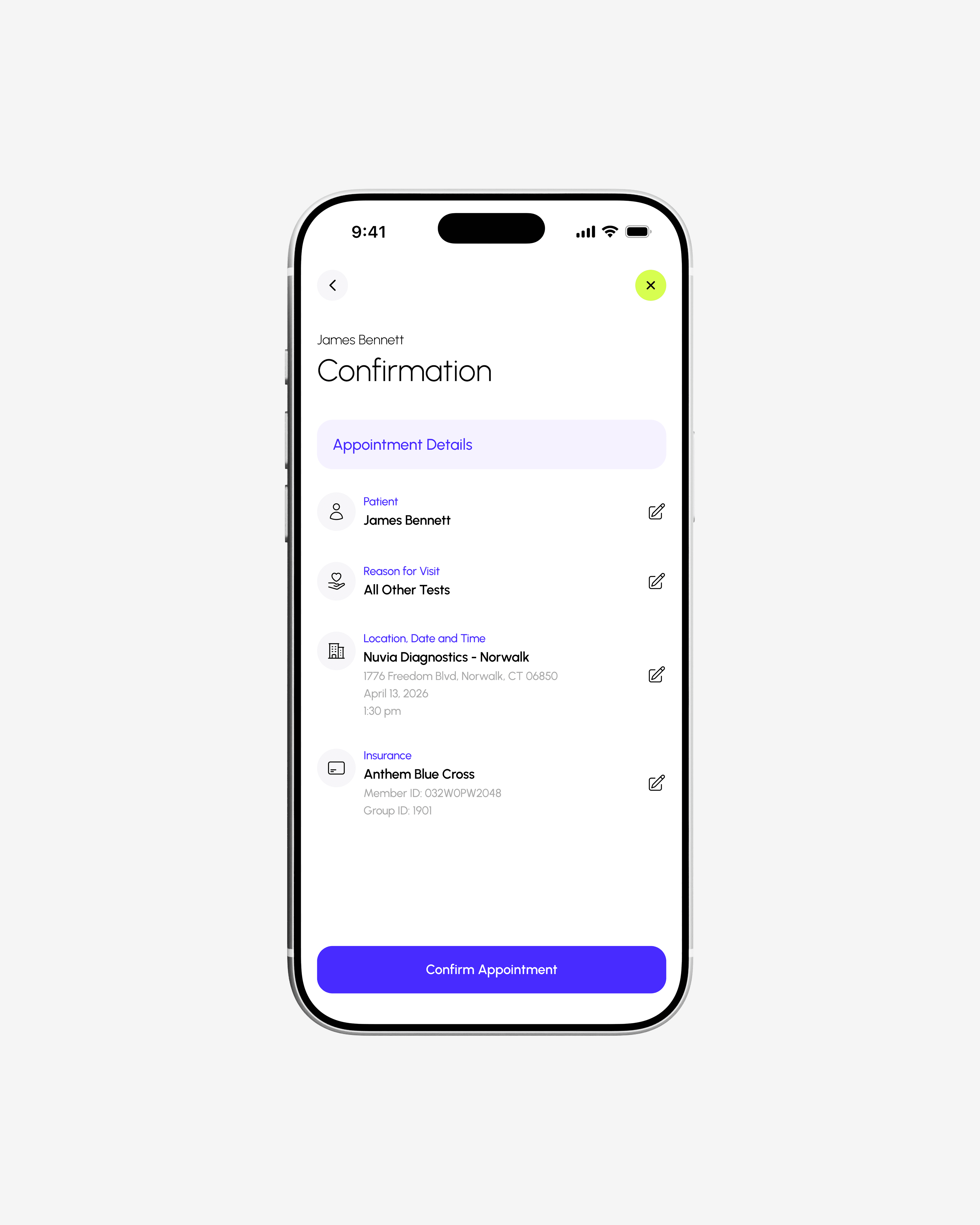
After selecting a time and location, users are prompted to enter their insurance information. The process concludes with a confirmation screen that summarizes all selected details, including date, time, location, and personal information, ensuring accuracy before finalizing the appointment.